Settings
Settings control how the game is presented and heard. Turning down a presentation option never changes what an engine clearance means - a few of them, though, genuinely change what you’ll hear on frequency.
General
Section titled “General”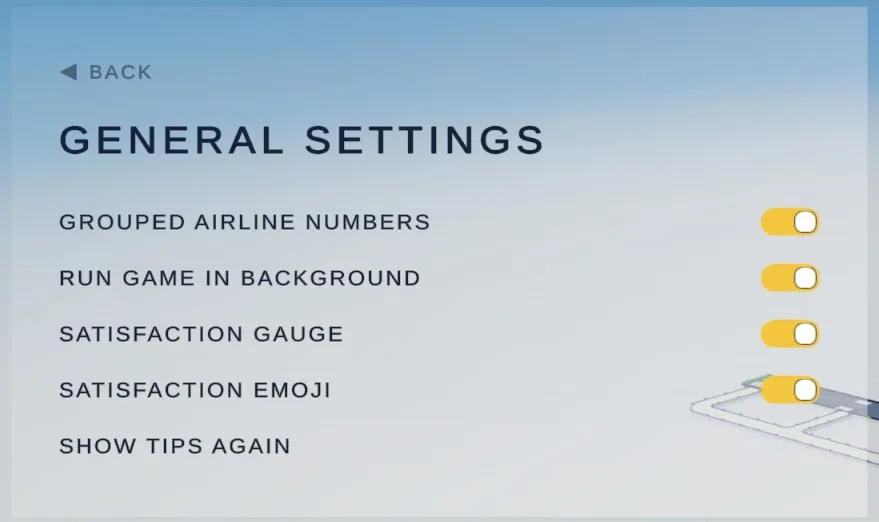
- Grouped Airline Numbers - how airline flight numbers are read back on the radio. On, a flight number is spoken FAA-style in grouped chunks (“nineteen twenty-nine”). Off, it’s read digit by digit (“one nine two nine”). That changes what your ear has to parse; the strip itself stays the same.
- Run Game in Background - keeps the shift ticking (and audio playing, if background audio is also on) while the window isn’t focused.
- Satisfaction Gauge / Satisfaction Emoji - show or hide the per-pilot mood indicators on flight strips. Turning both off doesn’t turn off pilot satisfaction as a system - see Scoring and Pilot Satisfaction - it just stops the strip from telling you about it at a glance.
- Show Tips Again - resets the onboarding tips so they resurface.
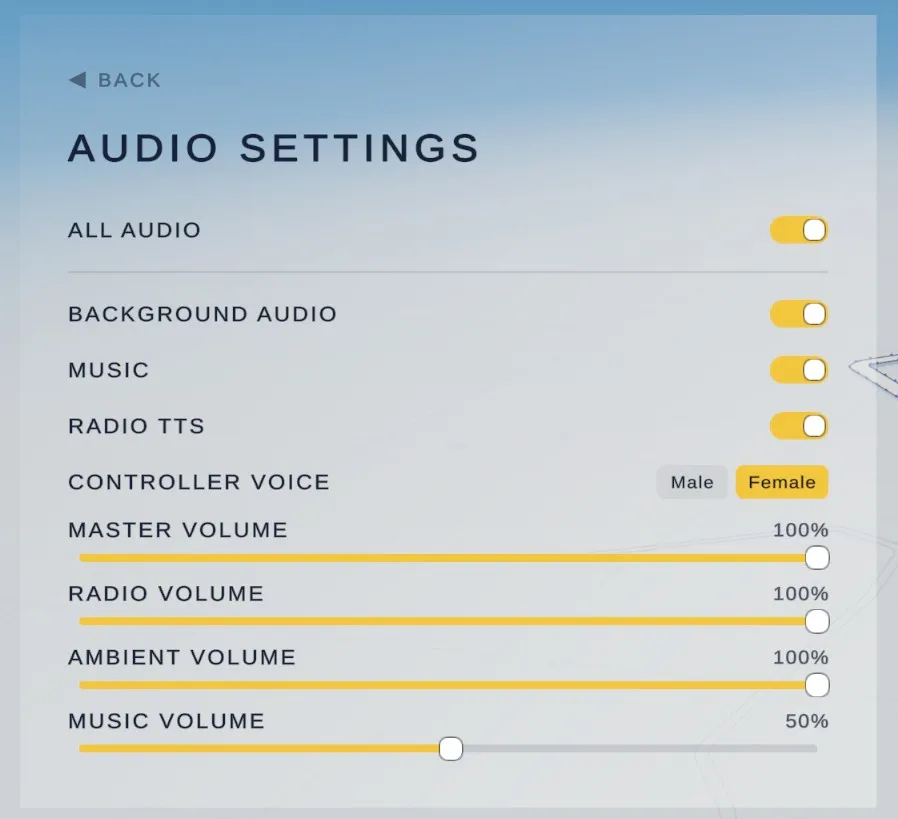
- All Audio - the master switch. Off, the game is silent regardless of the settings below.
- Background Audio - keeps sound playing while the window isn’t focused. It pairs with Run Game in Background under General.
- Music - turns the music on or off, leaving radio and ambient sound alone.
- Radio TTS - turns the spoken radio calls on or off. Off, exchanges still happen and still show as text; you just won’t hear them.
- Controller Voice - Male or Female. This is the voice you hear when you key up. Pilots use their own voices.
- Master / Radio / Ambient / Music Volume - independent sliders, so you can ride radio volume up without dragging ambient airport noise with it.
Graphics
Section titled “Graphics”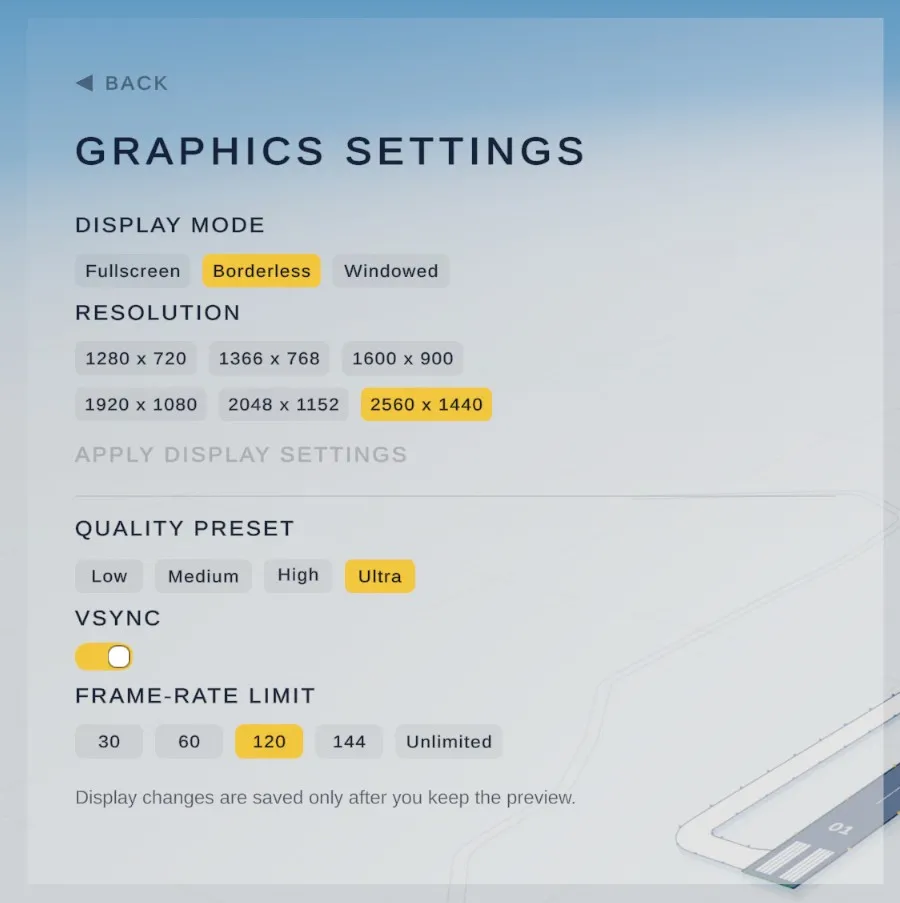
Display mode, resolution, quality preset, VSync, and a frame-rate cap - the usual presentation knobs, with one gameplay-adjacent note: display changes preview live and only save once you keep them, so a bad resolution choice doesn’t strand you.